Setup guide
Three quick parts: install OpenXR-MotionCompensation (the tool that actually stabilises your view — this plugin feeds it), install the plugin, then calibrate in VR. About ten minutes the first time.
Download OpenXR-MotionCompensation
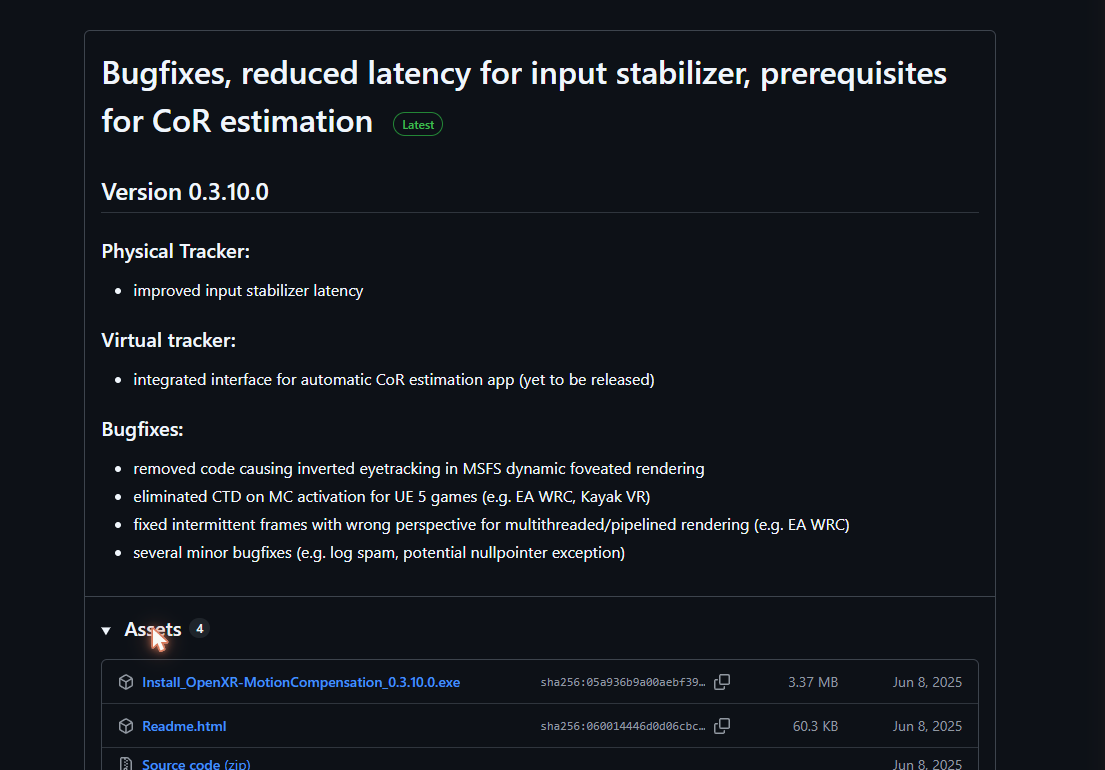
Grab the latest installer from the official OXRMC releases page — the file named Install_OpenXR-MotionCompensation_<version>.exe.
Run the installer
Run it with your normal gaming Windows account so its settings land in the right place. Accept the default install location (a subfolder of Program Files works for all headsets, including WMR). That's all of Part 1 — OXRMC's config file is created during install.
Install the plugin (like any SimHub plugin)
Close SimHub, then download User.OXRMCBridge.dll and drop it into your SimHub folder (default C:\Program Files (x86)\SimHub\). Start SimHub back up — on first launch it pops up asking to enable the new plugin; click yes and let it restart. (Missed the popup? See step 4.)
- Don't want to hunt for the folder? Run the included install.bat (as admin) and it copies the DLL there for you.
Missed the popup? Enable it manually
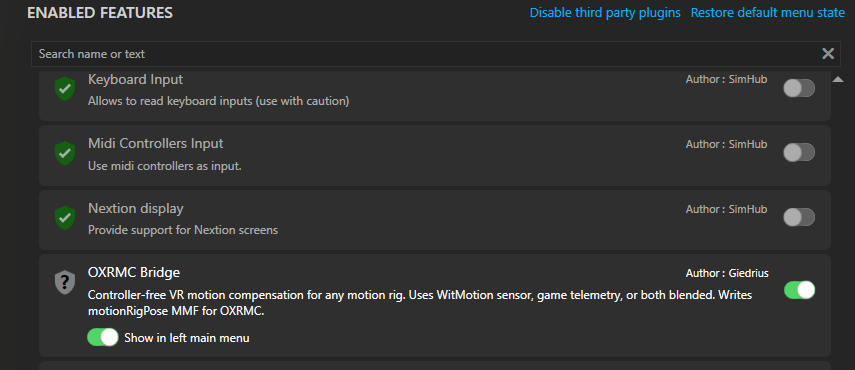
If the enable popup didn't appear (or you dismissed it), turn the plugin on by hand: in SimHub click Add/remove features in the left menu → find OXRMC Bridge → toggle it on (also enable Show in left main menu) → restart SimHub when asked.
Open the panel & auto-configure OXRMC
After restart, OXRMC Bridge appears in the left sidebar. Under OXRMC Setup, click Auto-configure OXRMC (flypt) — it sets the tracker type, turns on auto-activate, and backs up your config. No manual file editing, ever.

Pick your mode (Sensor recommended)
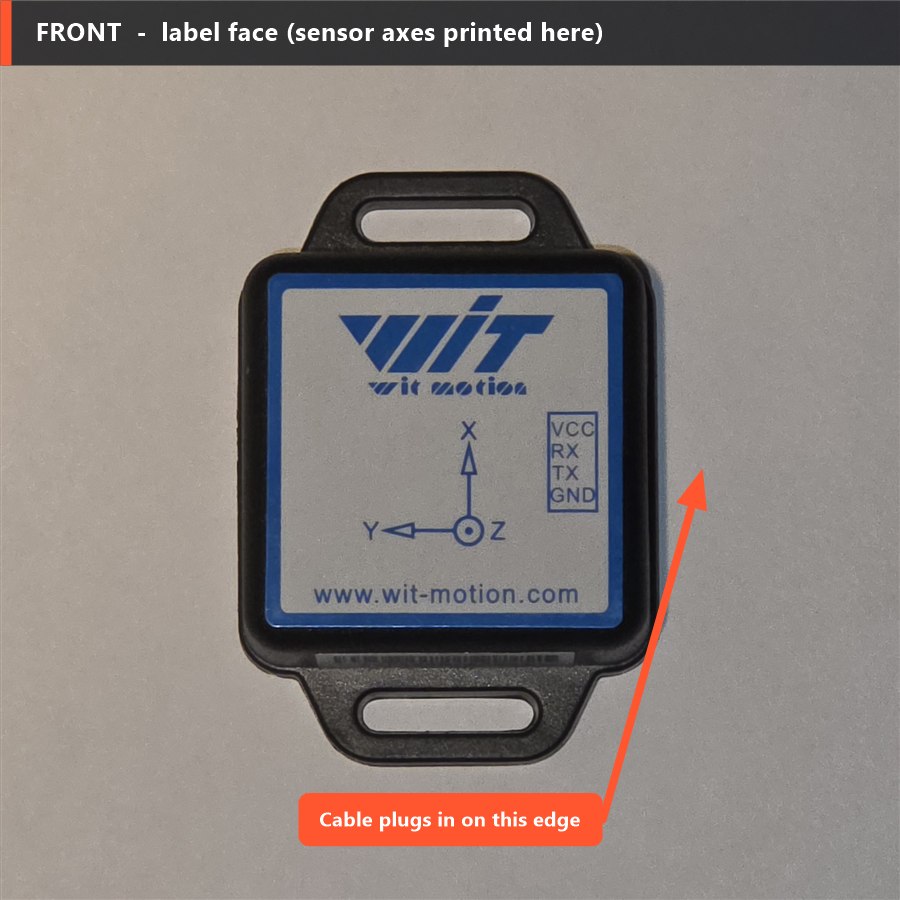
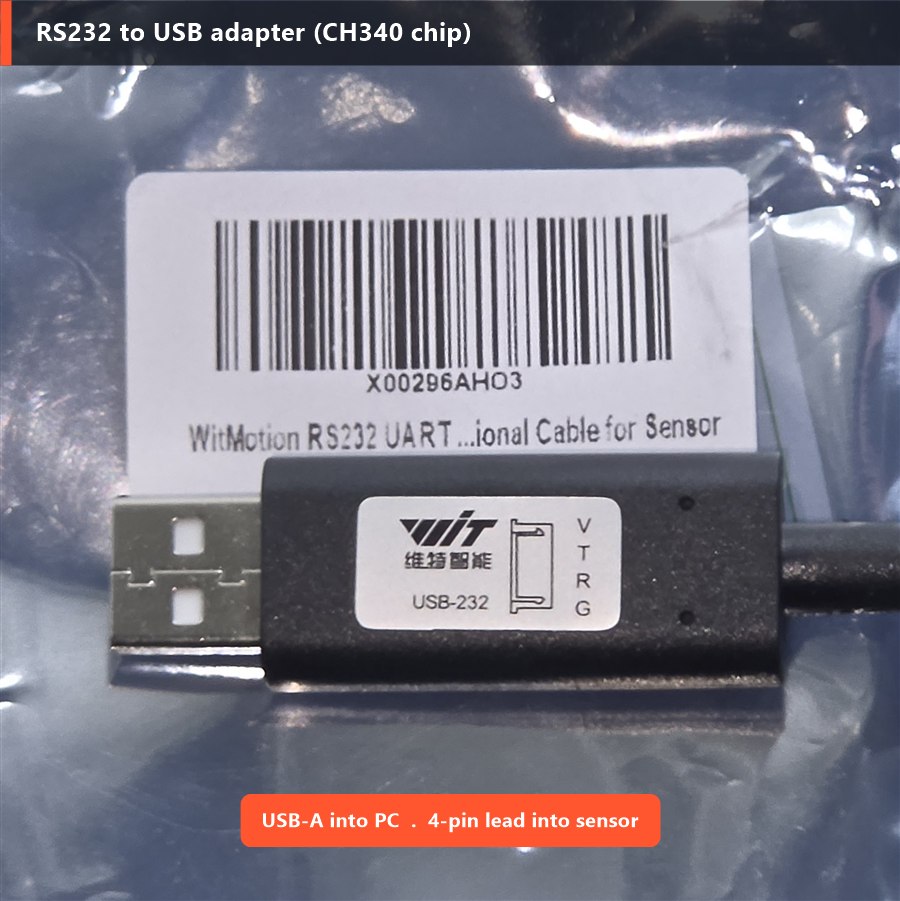
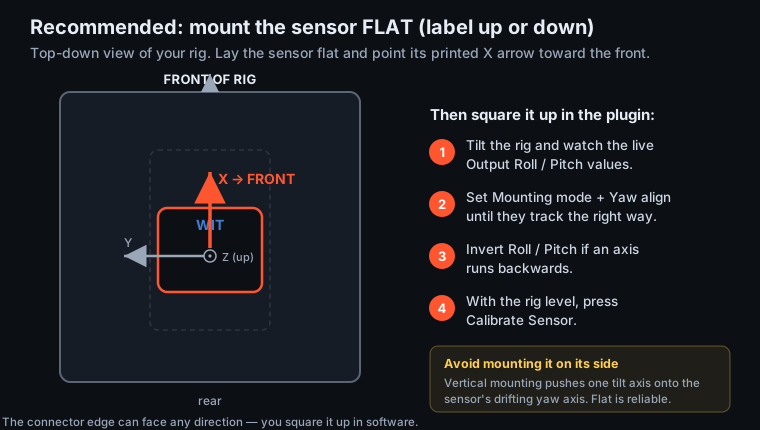
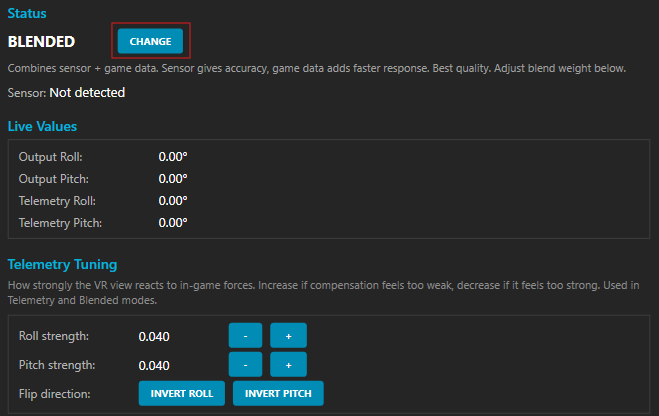
For the best result, add a WitMotion sensor — the plugin auto-detects it and runs in Sensor mode (true physical tilt, measured where your head sits). With no sensor it falls back to Telemetry (a g-force estimate) or, on a Sigma Integrale rig, Sigma mode (the rig's commanded motion). There's also a Blended mode — use the CHANGE button to cycle modes.
Either way, the live roll/pitch values start moving once a game is running.
Enter your rig's measurements
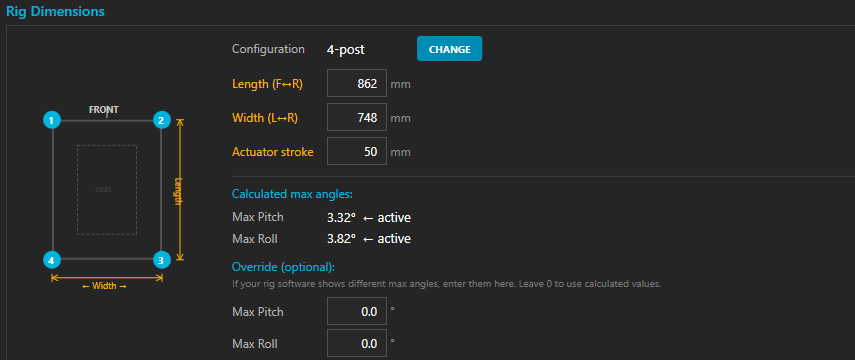
Under Rig Dimensions, pick your post layout (3- or 4-post) and enter your rig's length, width and actuator stroke in mm. The plugin uses these to work out your max pitch/roll — wrong numbers mean wrong compensation limits.
- If your rig software reports different max angles, type them into the optional Override fields.
It starts on its own — just drive
Because the Auto-configure OXRMC step turned on auto-activate, compensation switches itself on a few seconds after your sim loads in VR (OpenXR). There's nothing you have to press. Drive a lap — the rig moves, your horizon stays put. If an axis fights you, use the plugin's Invert Roll / Invert Pitch buttons.
The hotkeys below are optional and belong to OpenXR-MotionCompensation (not this plugin) — only reach for them if you want to re-centre or toggle by hand, with the rig at its neutral resting position:
CTRL+D— show the centre-of-rotation overlay so you can see the reference point and line it up with your seatCTRL+DEL— re-centre / calibrate (sets that reference point to where the rig is right now)CTRL+INS— toggle compensation. Since auto-activate already turned it on, the first press turns it off; press again to turn it back on.
About the Windows warning
The plugin is an unsigned .dll, so Windows SmartScreen may warn you on download — this is normal for free, source-available tools and doesn't mean anything's wrong. The full source is on GitHub if you'd rather build it yourself. Click More info → Run anyway, or right-click the file → Properties → Unblock.